I'd like to get a help regarding the graphics

I play with QHD 27inches monitor. So in my graphic option, fidelity is set to QHD, and it’s zoomed in to the max. Additionaly, I set every graphic options to the max(best quality).

The problem is, the game’s fidelity doesn’t look good. Units, buildings, and other objects like trees, they don’t look clearly clear or sharp even when i see it from the usual distance. It shows unnatural little squares on the lines as if the AA is bad. When I see it close, it’s more obvious and too much. But the interface look alright.

Let me show you the case.
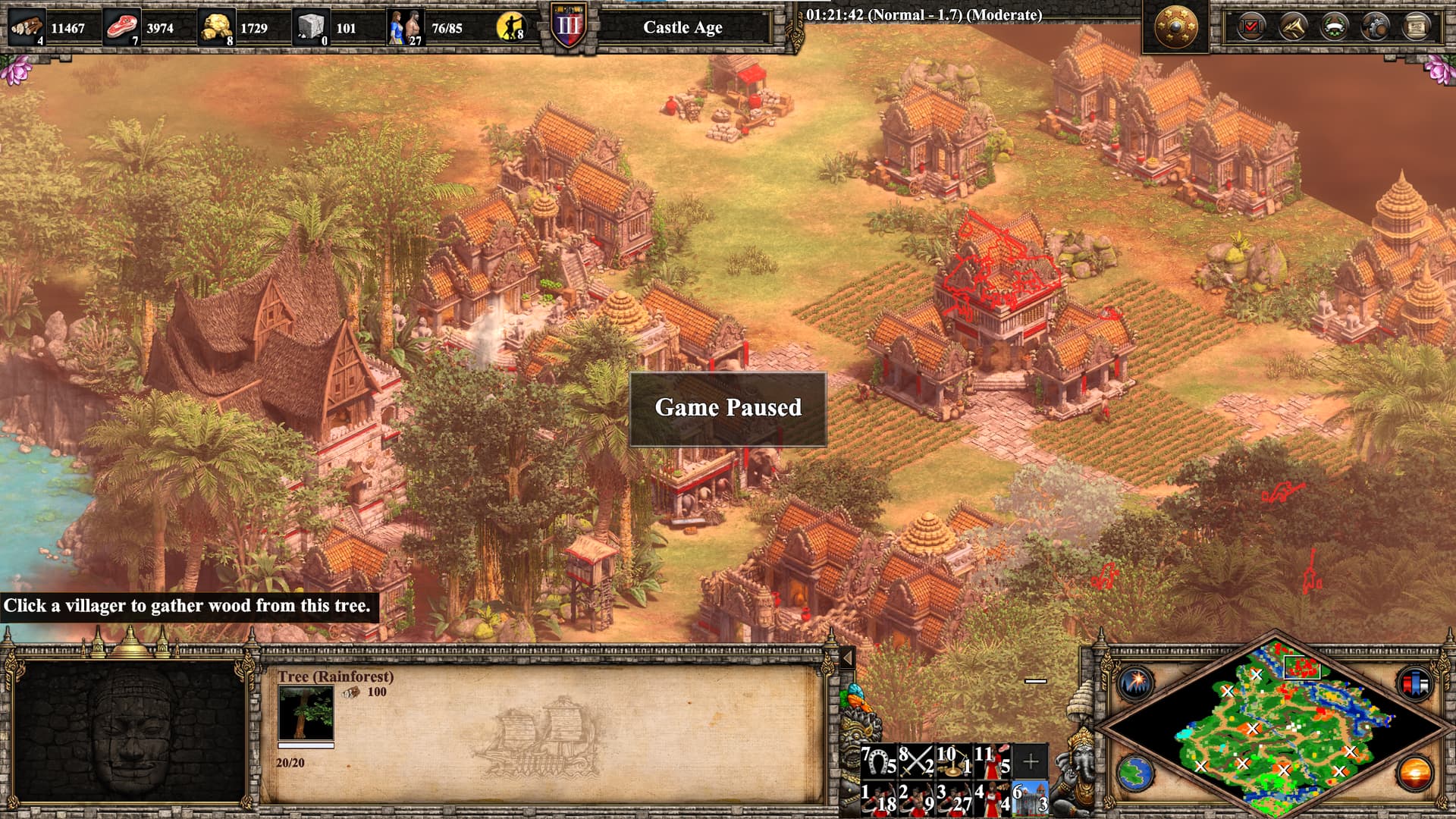
When I checked the picture in my PC thru the default Win10 picture viewer app, the image is a little more blur, resulting making it harder to notice. But if you see it close, you would know what I mean. It shows.

FYI, the graphic card is RTX3060TI with the latest studio driver, and I set some nVIDIA graphic control panel options. I’m posting this too, but sorry, it’s Korean and I couldn’t change it.

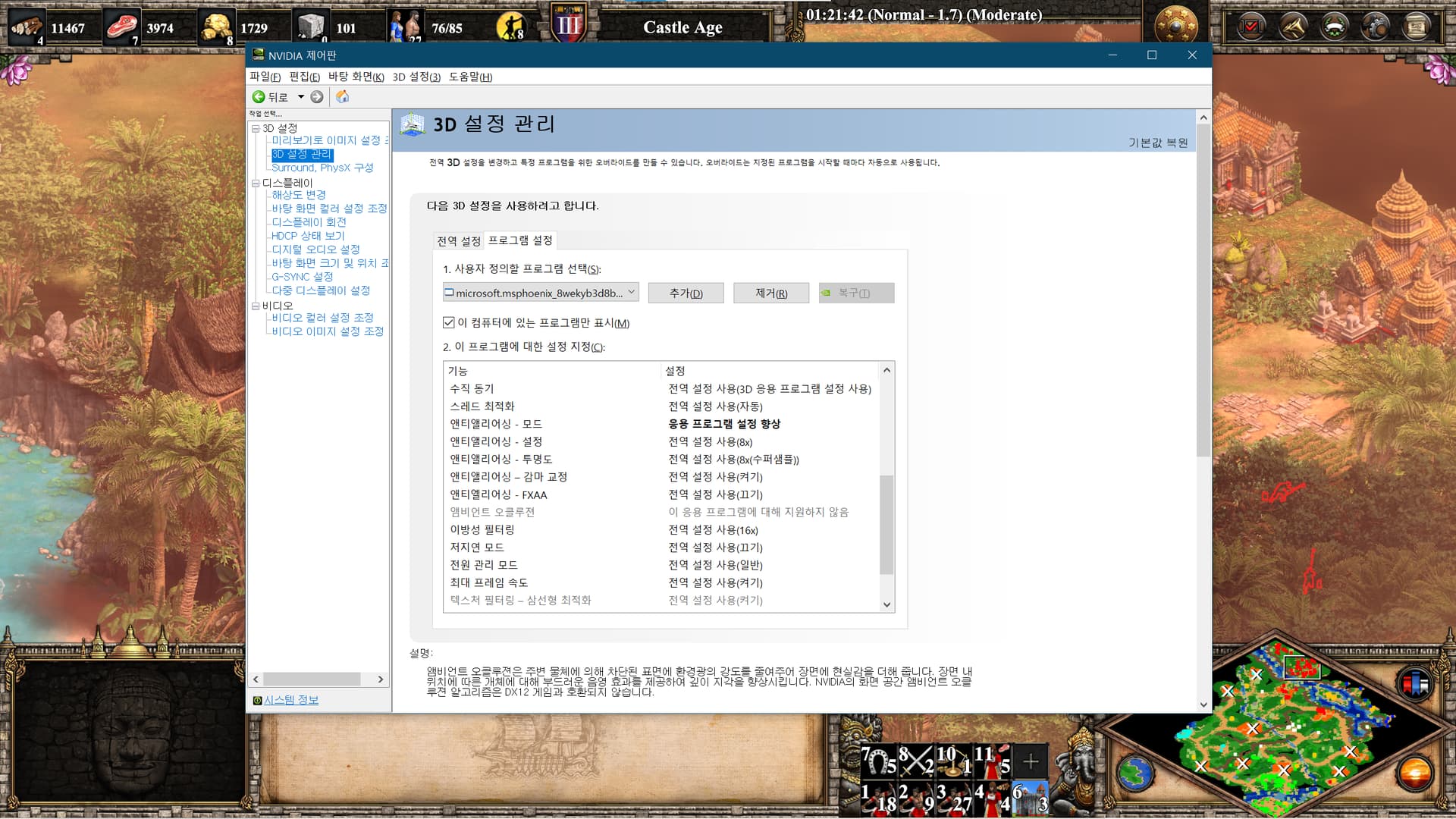

Someone told me to set off the image scaling if I, in-game, turned on the ‘Enable Sharpen’ option and tuned it high. It’s true I did it and tuned it to maximum. But It didn’t do any tho :frowning:

I hear the graphics of this game is good. And when I played it until early 2000s with the non DE, I remember not noticing this issue. And, when I play other games(SC2 and SC Remastered) with the same nVIDIA configs, they look good enuf not showing this issue. :frowning:

Please help me and possibly and hopefuly give me advice. Or is it just like it’s supposed to be with this quality of the graphics?

Thnx.

Please go to Game Settings and then play with Graphics Options
Im sure is it the place where you will find the answers

Hi,
as TheLiberator236 pointed out, your first priority should be checking the in-game graphics settings, not just the NVIDIA Control Panel.

What I recommend:

  1. Confirm the resolution is set to match your monitor: 2560 × 1440 (QHD).
  2. It looks like you have Bloom maxed out and may have Depth of Field and Map Lighting enabled. Try adjusting these based on your preference, sometimes less is more for clarity.
  3. Disable Sharpening in-game. Setting it too high often introduces artifacts like the “unnatural squares” you’re seeing.
  4. If you want truly high fidelity visuals, enable “Enhanced Graphics (UHD)”. This requires downloading the free UHD DLC from Steam.

Let us know if that helps or if the issue persists even after trying these changes.

Thank you for the answer. I did not post the ingame config settings cuz I thought the fact everything is set to the max explains. But for the better reference, I think posting my setting is a good idea.

Here it is man.

Sorry, I am posting the english one.

1 Like

Thank you. I thought checking everything and maxing them would always results in best quality. :sweat_smile:

You are right with your assumtions. Here is, for reference, the picture showing my setting I am posting.

And yes, I would take your advice and try trying.

I might let you know the result and hoping the good one!

1 Like

BTW, about the UHD thing, is it relevent? Cuz, my monitor is non-UHD, and I asked the team and they said it don’t do anything for my case other than making sprites bigger. And I have been playing with UHD on since I wanted them bigger back then. IDK for sure, but it looked it makes the quality better slightly, or not.

It depends on what you’re aiming for. For casual play or scenarios, maxing out settings might be more “atmospheric,” but it comes at the cost of clarity, which can negatively affect competitive play. For example, take a look at TheViper’s settings, where almost everything is turned off: https://youtu.be/x6q45ch9cD0?si=0mUiFozBQsEUb7HS&t=550. For some players, default graphics actually look better and clearer than heavily shaded visuals with Bloom, Depth of Field, Map Lighting, etc.

Regarding the UHD pack, it depends on your resolution. I’m not entirely sure how it appears on QHD, but on my 4K setup, playing without UHD graphics isn’t practical, because the units become too small and difficult to see clearly. With UHD enabled, the sprites scale better, making gameplay significantly more comfortable.

Thank you.

I tried all your suggestions except the ‘Enhancd… (UHD)’, cuz I have played with it till now. Other options, actually I coudn’t notify any difference on the graphic even when i totally turned them off. But Image Sharpening makes a litte difference. When I turn it off, It looks a little more blur. Being little more blur may make the quality a little worse, but on the contrary, makes the lines and edges’ ‘square things’ harder to be notified.

It looks I would have to choose one between two as if double edged sword. So far, I think I am going with turning it off.

Thank you for your kind answer with solution. See you next time.

Sorry I couldn’t be more helpful. It’s hard to diagnose from afar. To me, the pictures you provided looked primarily washed-out orange-red, and only secondarily blurry. For example, the Fog of War should appear black, not reddish-brown.

Did changing the mentioned settings (like map lighting) fix the color issue? If so, maybe sharing an updated screenshot could help narrow down the cause of the blurriness. It could be a mod or some unusual setting in the NVIDIA Control Panel causing the game to render at a suboptimal resolution hard to say.

But if you’re content with how it looks now, that’s totally fine too.

You say, you’re sorry, but no. So far, no one has helped me like you did. So I am grateful.

I am really sorry. The color problem you saw was, just a MOD. :sweat_smile: It’s called sth as Scorching Sun Lighting, and I applied it cuz the mission was on Java and thought it would make it more immersive cuz the island should be hotter. So no, there is no color problem. I am satisfied with the color quality.

The only problem is the square stuff and your solution, turning off sharpening helps a lil tho it’s not perfect.

I dunno why but other option changes, I couldn’t tell any difference even with colors. I don’t have to restart the game for the apply right?

And also, I would like to post the pic of the NVIDIA CP set of mine. But it’s all Korean and I dunno how to change the language setting. I tried to find within the app but don’t see it. The Kor ver’s been already posted up there.

So, if I translate all that with the right sequence, would you kindly try it? Because it takes some effort to translate it, if you say yes I could provide it.

Thank you.

Okay, that explains it. I was really worrying about what it could be. If that’s not the cause of the blurriness, it must be something else. Getting an image of the game without the color mod might help figure out exactly what’s wrong. At least for me, it would be easier to identify since I can compare it with my own game.

Right.

I’ve already fed the images to ChatGPT, and it said they looked fine. I can’t tell how well it handles Korean glyphs in its image recognition, but so far it’s been quite reliable. I somewhat agree with the proposed changes, since I don’t think they’d make a noticeable difference:

Setting Current Value Recommended Change
Image Scaling Off Leave Off (native resolution is best)
Ambient Occlusion Off Leave Off (AoE2 doesn’t use it)
Anisotropic Filtering Application-controlled Leave (let game manage it)
Antialiasing – Mode Application-controlled Leave
Antialiasing – FXAA Off Leave Off (avoids added blur)
Antialiasing – Setting Optional: Reduce to 4× if you prefer sharper UI
Antialiasing – Transparency 8× (multisample) OK, but higher transparency AA can soften textures
Antialiasing – Gamma Correction On Leave On
CUDA – GPUs All :white_check_mark: No change
Low Latency Mode Off Leave Off unless you notice input lag
Power Management Mode Prefer maximum performance :white_check_mark: No change
Threaded Optimization Auto :white_check_mark: No change
Triple Buffering Off :white_check_mark: No change
Vertical Sync Use global setting Set to Off to remove any added input lag
Texture Filtering – Quality Quality Change to High Performance for crisper textures
Texture Filtering – Trilinear Optimization On Turn Off to avoid extra smoothing
Texture Filtering – Negative LOD Bias Allow OK
Texture Filtering – Anisotropic Sample Opt. On OK

The most important thing is that image scaling is off and the resolution is set to your target resolution. That should give a crisp image, at least when viewed halfway zoomed out. If it looks fine generally but gets blurry when zoomed in, I’d give the UHD mod a shot.


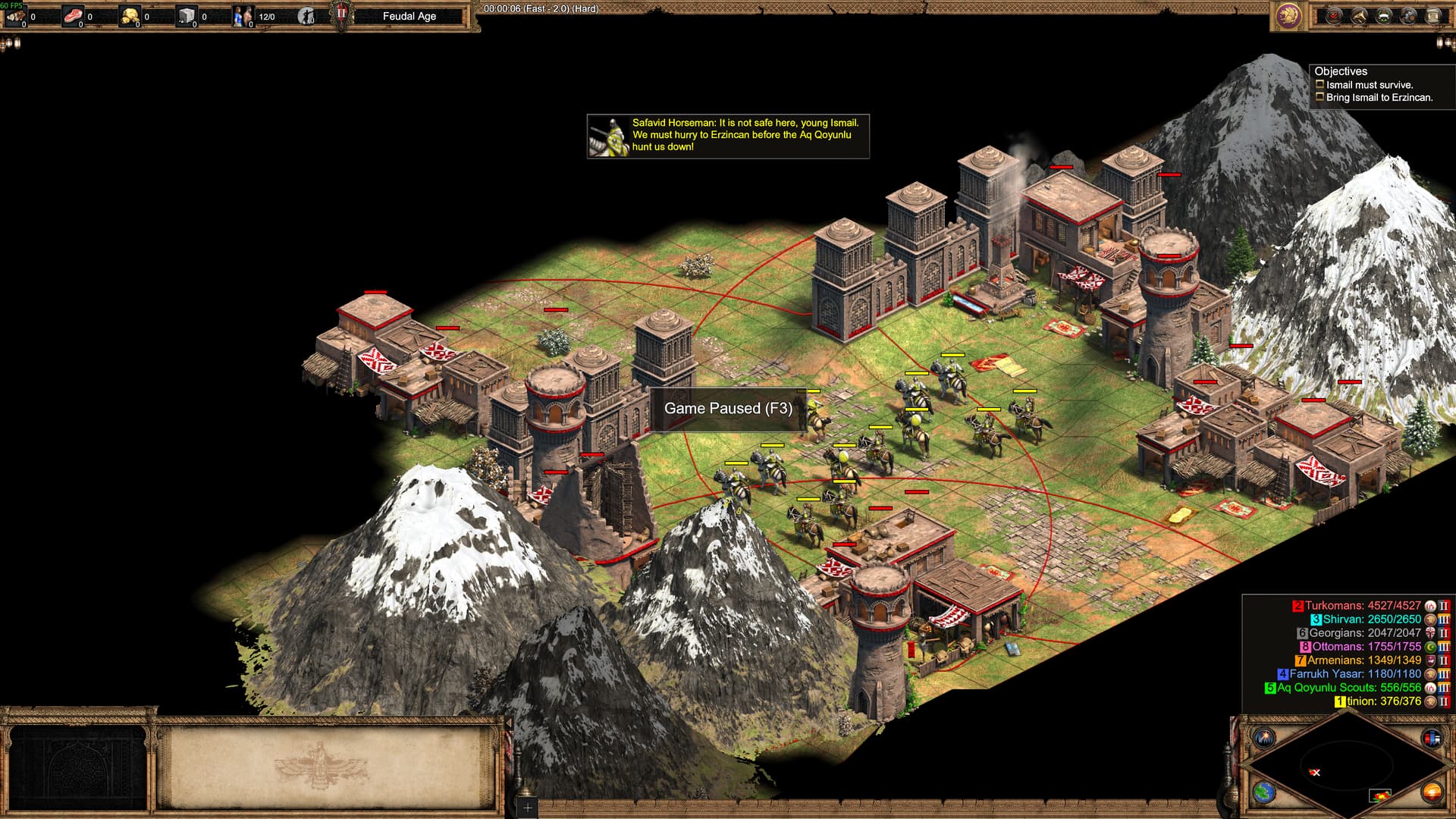
Here is the pic of gameplay without the MOD except ones with reskins. It’s the initial start of Ismail campagin. There, other unists are changed but 2 Light Calvalrys in the middle of the units remains the same as original with buildings and all others. Players colors should be different with original since I use a MOD that does. But colors is not a problem at all so it should be alright, I think.

When you said crisp image, it wasn’t easy for me to understand it really since English is not my main language. I know what it is for food texture when you eat. if I understand it as clear image(opposite to blur one), it wouldn’t be wrong, right?

About the nVIDIA settings, when you said ‘no change’, does it mean to leave off? or as default? And about ‘Antialiasing – Setting’, I couldn’t understand it. Doesn’t high number of it makes the image sharper, since AA is technology to reduce the squares and high numbers mean stronger affection of it?

With UHD disabled, the game now looks exactly as it should. Here’s my screenshot (no snow, no grid, smaller trees, most additional settings disabled):

The units look equally blurry for both of us.

And here’s a shot with UHD enabled. For me it’s a night-and-day difference in sharpness and clarity, and it even lets me zoom in further:

“Antialiasing” controls how many samples are taken to smooth jagged edges:

Higher sample counts (e.g. 8×) give you the smoothest edges, but they also blend pixels more strongly, which can make the image, and especially UI elements, look softer or slightly blurred.
Lower counts (e.g. 4×) still reduce most of the “stair-stepping”, but with less blending, so the result is a bit sharper.

Thank you for your help. I think I got my settings complete now.

I didn’t take all your recommendations, but took most of it after veiwing the youtube clip on Nvidia setting with testing it myself.

I think the key was to, disable the Nvidia settings which the game deal with already. For example, Image scaling and AAs… Some of those are said to work with the in-app(ex, games) settings and make it better(more). Now I think it doesn’t turn out well, at least for this game and I don’t think i would do so anymore for any other apps, after checking that it’s better without it(letting the app handle those is better).

There was a tricky thing on this. For some options, they are the same functions just with different namings. For example, ‘image scailing’, I think it’s the same as ‘sharpening’ in the game.

Maybe if you set the options of Nvida setting with the game’s ones. It gets too much and results in unintended(worse) quallity.

I am posting two pics show the prior one with the present one to be compared. I am a little amazed myself now after comparing the pics. I am not sure if you could see the exact same ones I do due to thecnologic reason, but am sure you could see the difference anyhow. Ignore the difference of the colors and unit appearences. I think it’s all due to the MODs.


Thank you for all, man.