Build Number
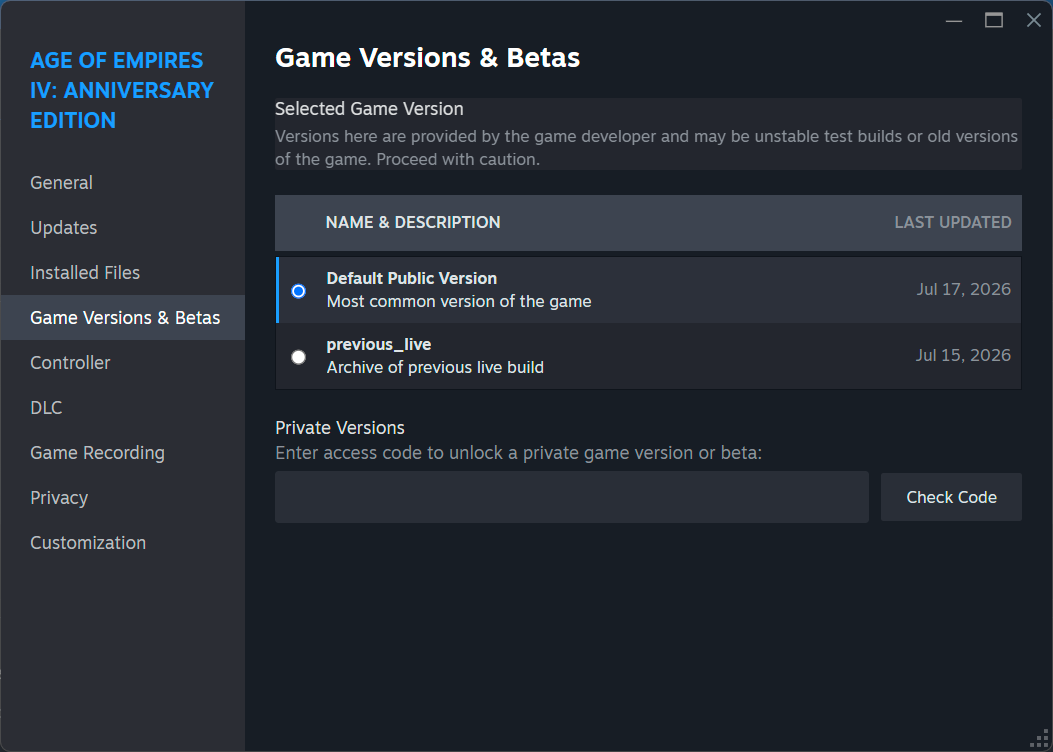
Latest public Steam build
Platform
Steam
Operating System
Windows 11
Issue
The post-game statistics/results screen causes my GPU fans to ramp up immediately, making my PC significantly louder than during actual gameplay.
This is the first thing I noticed—not high GPU utilization, but the sudden increase in GPU fan noise as soon as every match ends and the results screen appears.
To investigate, I monitored the GPU using MSI Afterburner. The post-game statistics screen consistently places the GPU under a very high sustained workload, despite displaying only a mostly static user interface.
On my system, I consistently observe the following while viewing the post-game statistics screen:
- GPU utilization: approximately 95–99%
- GPU power draw: approximately 300 W
- GPU temperature: 72–74°C
- Sustained high GPU clock speeds
- Noticeably increased GPU fan speed and overall system fan noise
The most surprising part is that actual gameplay is quieter than the post-game statistics screen.
The game is configured with a 120 FPS frame rate limit, and I have confirmed that the behavior is identical with both HDR enabled and HDR disabled.
This issue appears to be isolated to the post-game statistics/results screen.
Steps to Reproduce
- Launch Age of Empires IV.
- Play and complete any match (Skirmish against the AI, Quick Match, or Ranked). The issue occurs regardless of game mode.
- When the post-game statistics/results screen appears, observe the GPU fan noise.
- Verify the GPU workload using MSI Afterburner.
Expected Result
The post-game statistics screen is largely static and should require significantly less GPU processing than actual gameplay.
The GPU fans should remain relatively quiet while viewing the match results.
Actual Result
As soon as the post-game statistics screen appears, the GPU is placed under sustained high load, causing the GPU fans to ramp up immediately and making the PC noticeably louder than during gameplay.
Frequency
100% reproducible on my system.
System Configuration
- Platform: Steam
- Operating System: Windows 11
- GPU: NVIDIA GeForce RTX 4080 (ZOTAC)
- CPU: Intel Core i7-13700KF
- Memory: 32 GB DDR5
- Resolution: 3840 × 2160 (4K)
- Frame Rate Limit: 120 FPS
- NVIDIA Game Ready Driver: Latest version
Additional Information
I verified the behavior using MSI Afterburner while monitoring GPU utilization, clock speed, power draw, temperature, and fan speed.
I also tested the game with HDR enabled and HDR disabled, and the behavior is identical in both cases.
From a player perspective, the most noticeable symptom is fan noise. It feels counterintuitive that the PC becomes louder while viewing a mostly static results screen than while actively playing the game, which suggests the results screen may be performing substantially more rendering work than necessary.
Attached is a screenshot taken while the game is on the post-game statistics screen. It shows the GPU operating under sustained high load while displaying a mostly static UI, resulting in noticeably increased GPU fan noise. The measurements shown were verified using MSI Afterburner.
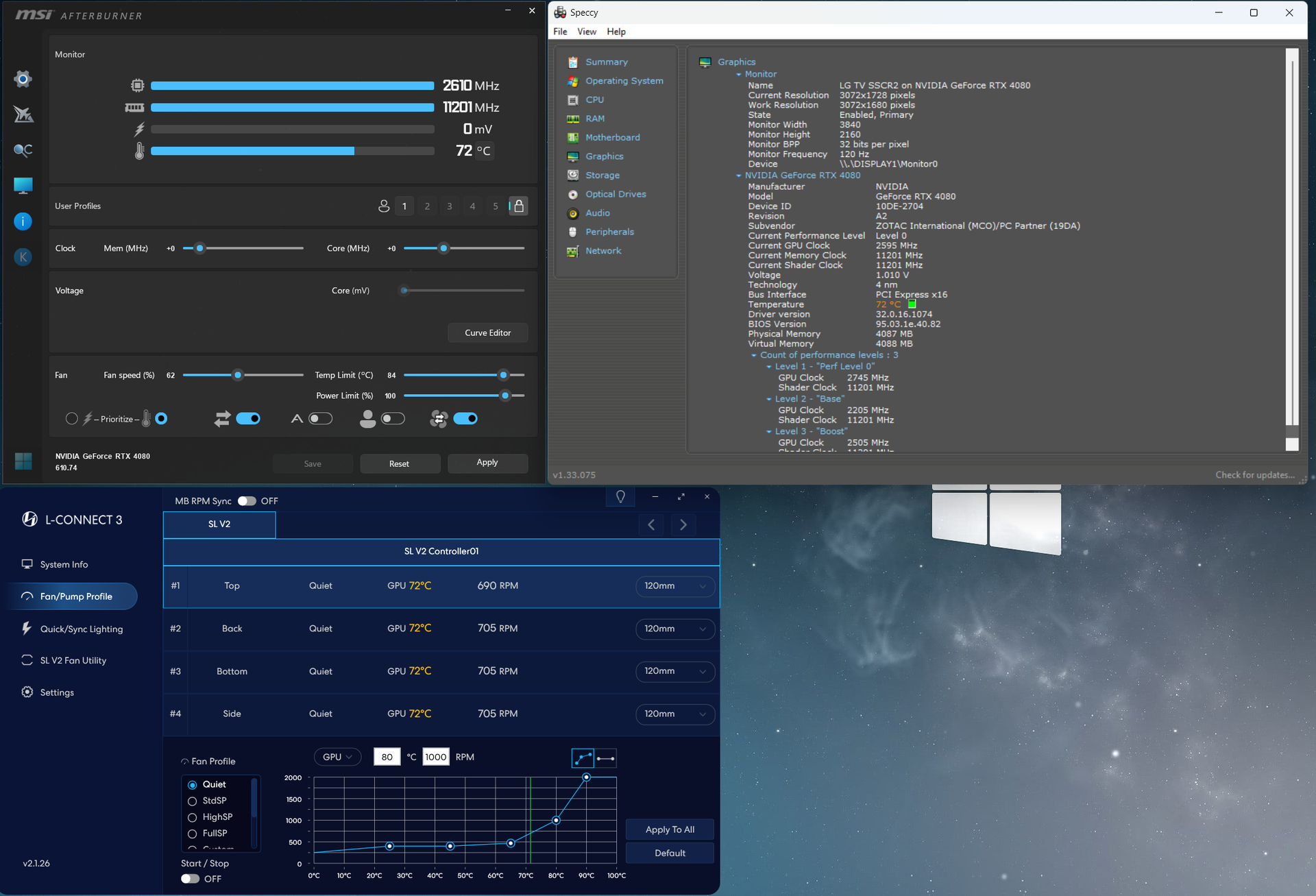
Update: I managed to work around the issue using MSI Afterburner by creating a custom GPU fan curve specifically for Age of Empires IV. I only use this profile for AOE4—I don’t use it for any other games, and I’d still much rather see the developers fix the underlying issue.
To do this, I enabled “Enable user defined software automatic fan control” under Settings → Fan, then created a custom fan curve.
My current curve is:
- 40°C → 0%
- 50°C → 20%
- 60°C → 30%
- 70°C → 40%
- 75°C → 47%
- 80°C → 58%
- 85°C → 72%
- 90°C → 100%
I also enabled “Override zero fan speed with hardware curve” so the card still behaves normally at idle.
This makes the post-game statistics screen much quieter on my RTX 4080 while keeping temperatures well within safe limits. It’s a decent workaround, but I’d still prefer to see the post-game screen optimized so a workaround isn’t necessary.